
How to Import Data
General Overview
To import data, select the Import button found in the upper right of any of
the C4BACKEND entries:

- Collaborations
- Keywords
- Organizations
- Users
You must add collaborations, keywords, and organizations before adding a user.
You'll note that
Front End Parametersare excluded from this list. These parameters cannot be imported or exported.
When you reach the import screen, you will see the following image. For this
example, the collaborations import options are shown.
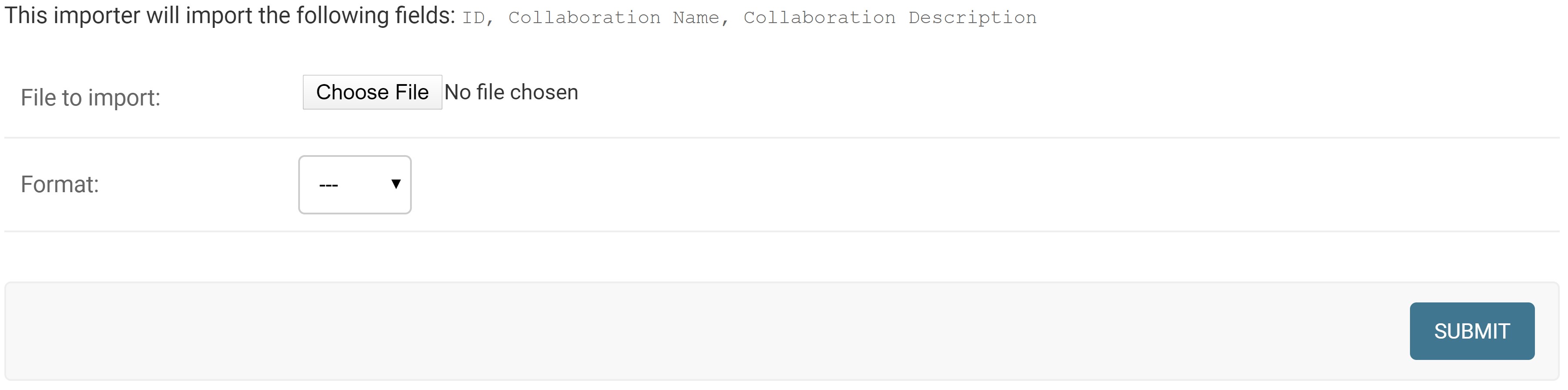 When importing the data, the headers must be formatted exactly as the
description shows. In this case, the headers must be (
When importing the data, the headers must be formatted exactly as the
description shows. In this case, the headers must be (ID and if shown,
dateAddedcan be omitted). For example, trying to input the following data will
show the confirmation screen shown below.
| Collaboration Name | Collaboration Description |
|---|---|
| Class projects | Opportunities for class projects |
| Consultant | Changed Description |
| New Collaboration | New Description |
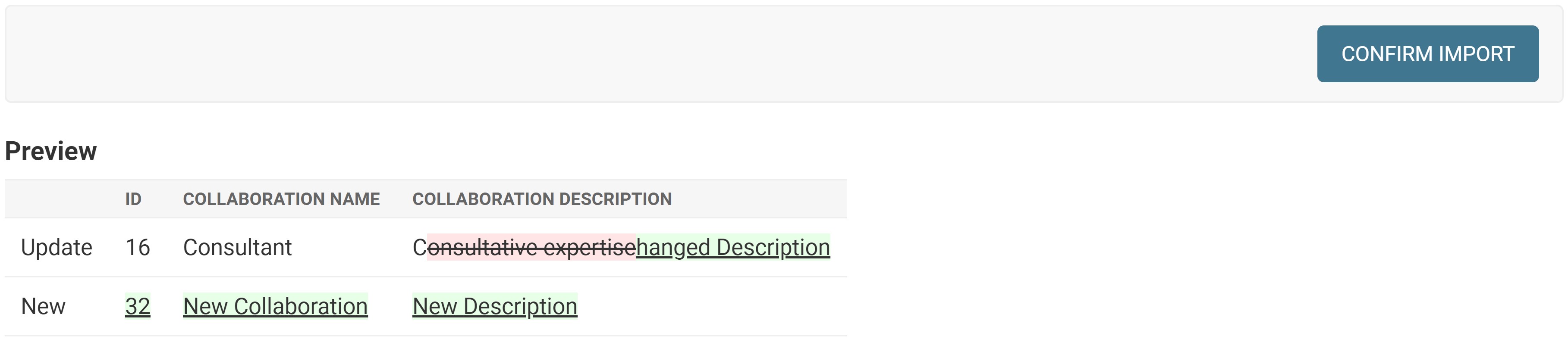 You can notice how
 Class Projects was already in the database and thus was not
shown in the entry import list. Any new items are denoted by the new tag and
the information is shown in green in the import list. Updated information is
denoted with a red strikethrough of the old information and green highlighted
text of the new information.